How to download transcript and subtitles of YouTube video


Step-by-Step Guide on How to Download YouTube Videos
Step 1: Install the Chrome Extension
To transcript YouTube videos, first, you need to install the Eightify Chrome extension. This extension will allow you to get transcript of any YouTube video with a single click.

Step 2: Log In with Your Google Account
After installing the extension, log in using your Google account. This will enable you to download and share your video transcript.

Step 3: Open YouTube
Now that you're logged in, navigate to YouTube and select the video you want to download. This could be a lecture, a tutorial, a news segment, or any other type of YouTube video.
Step 4: Click the Summarize Button Under the Video
Underneath the video, you'll see a 'Summarize' button. Click on this button to start the summarization process. Eightify will provide the transcript and the key points from the video.

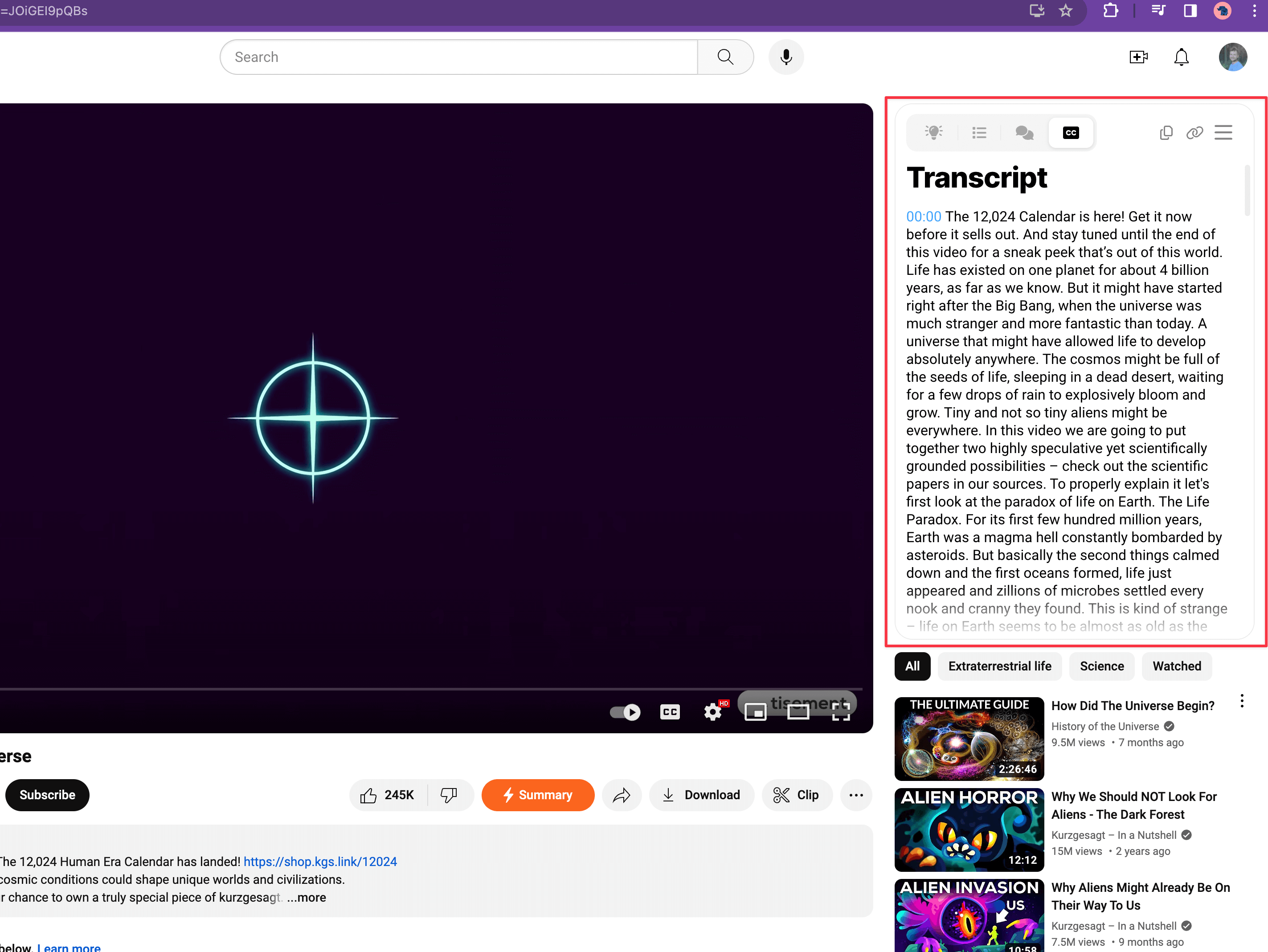
Step 5: Transcript Will Appear in the Right Column Above Related Videos
Once the summarization process is complete, the summary and captions will appear in the right column above the related videos. This summary will include the readable text and key insights from the video.
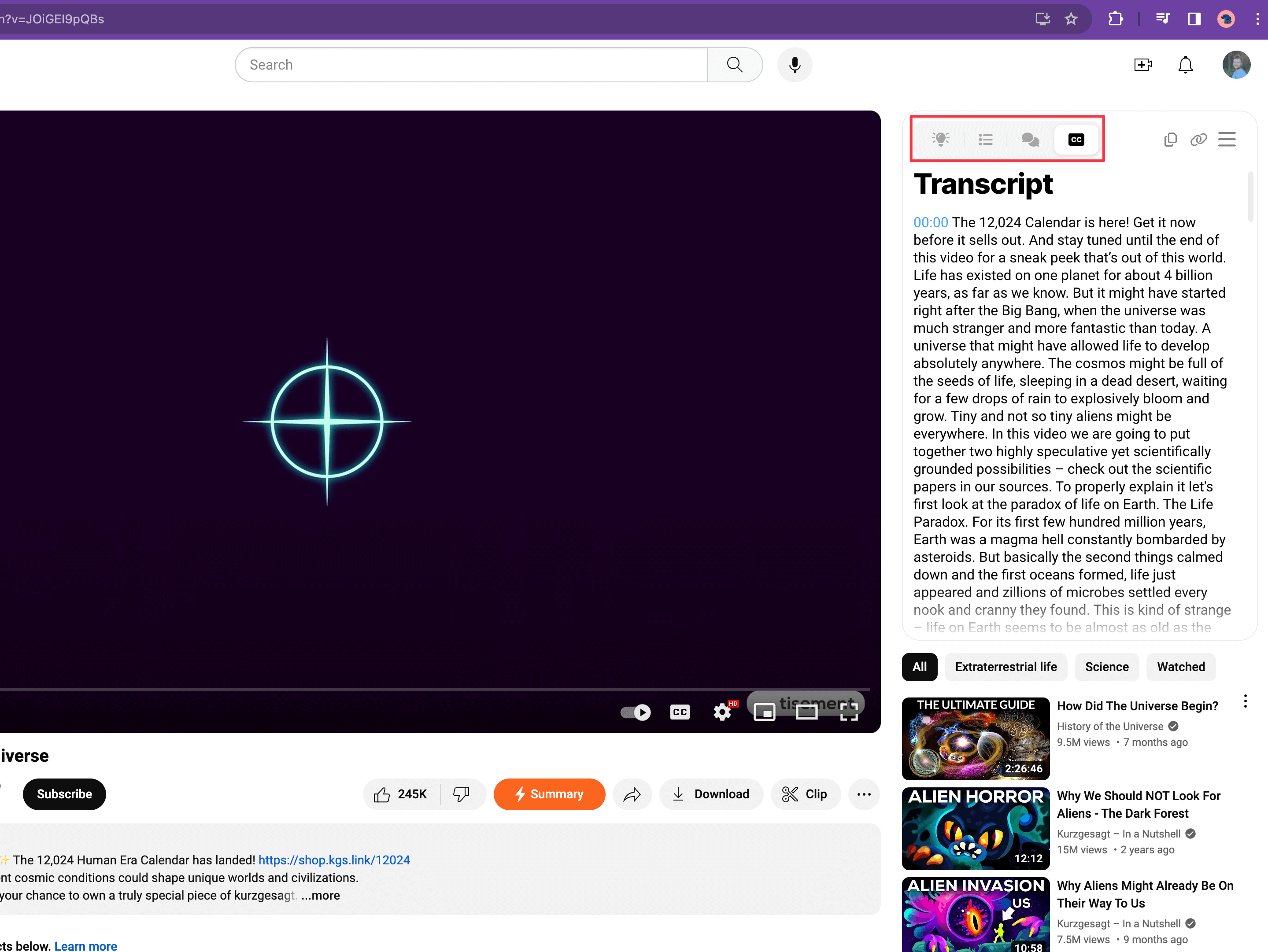
Step 6: Choose Insights/Transcript with a Toggle
You can choose to view either the transcript or just the key insights using a toggle. This allows you to choose brief or in-depth captions to suit your needs.
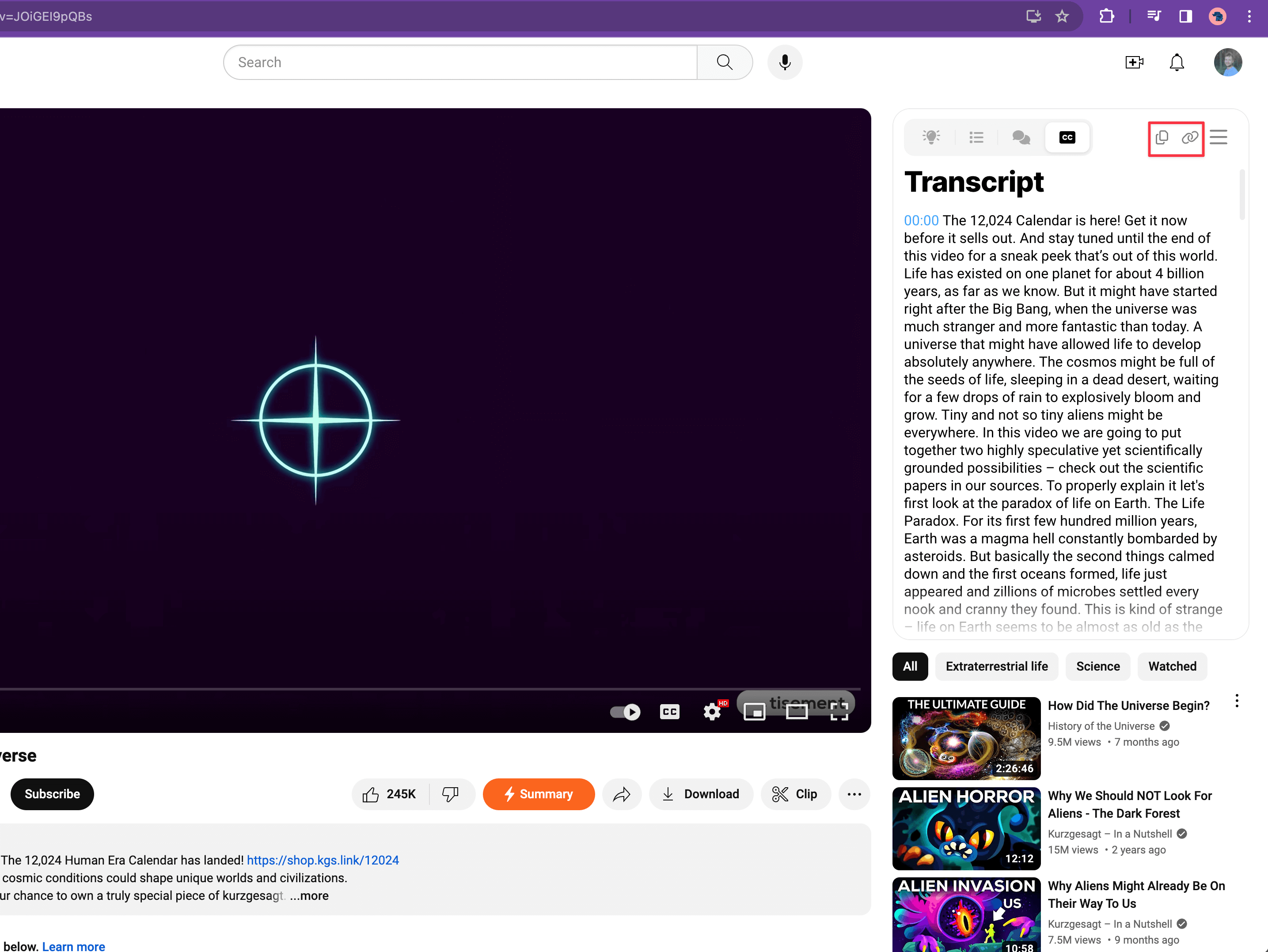
Step 7: Copy or Share the Transcript
Finally, you can read the transcript online. You can also copy the transcript or share it with others. This makes it easy to download captions from a YouTube video to use offline.